 Fennec
Pick a talk button
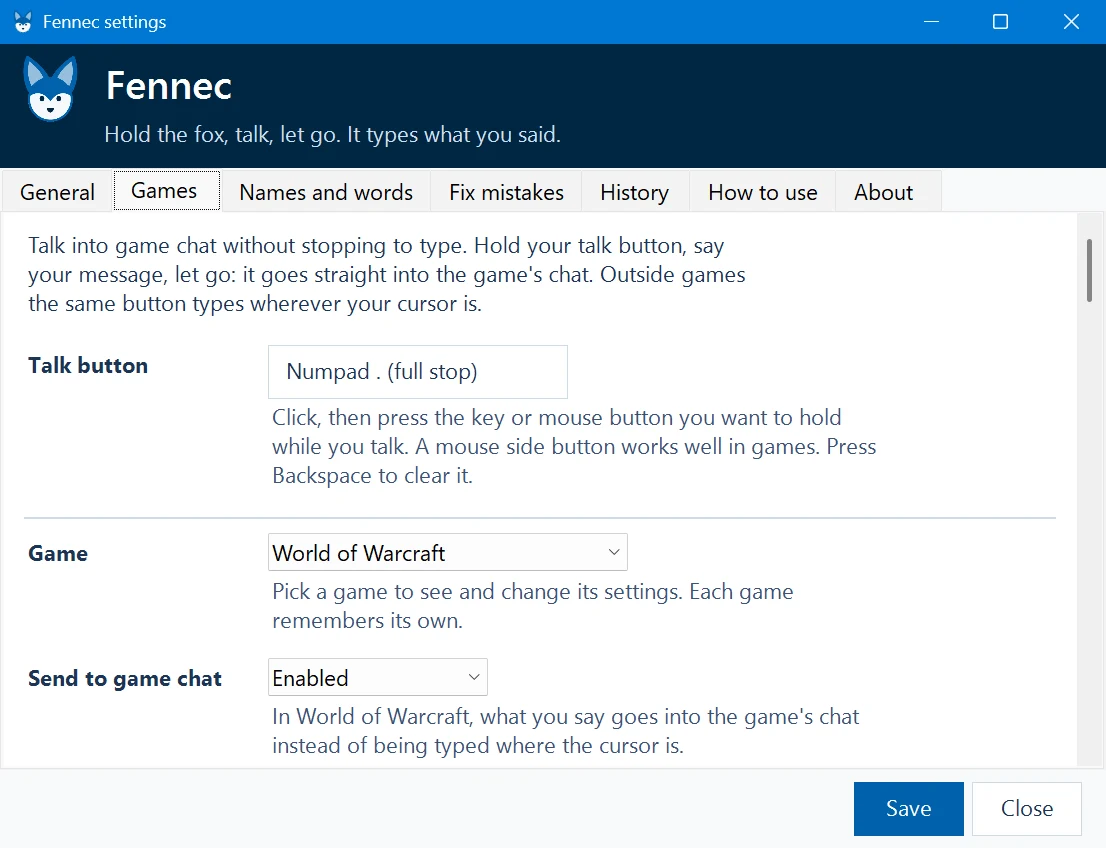
Go to the Games tab inside Fennec's settings. Select a talk button there. You can use an extra mouse side button, which is often a good choice. Or just pick any key that you do not use during gameplay.
Fennec for games
Healers die when they stop fighting to chat. With Fennec you press and hold a key on your keyboard or mouse, say what you need, then release it. The message appears in the game chat and is sent on its own while both hands remain on the fight.
Free. Works with World of Warcraft. Nothing you say leaves your PC.
Fennec supports speech in roughly 100 languages. You can use voice instructions for channel, whisper, reply, scratch that and send while speaking German, French, Spanish, Portuguese, Italian and Russian. The application interface on Windows adapts to your system display settings.

See it in action
A healer requests a drink right before the next pull. He speaks it aloud while his fingers stay on the keyboard, and shortly after, the message hits party chat. The entire process lasts sixteen seconds.
What your party sees
By default, your text is posted in the game's designated channel, which starts off as party chat. If you want to direct a specific message somewhere else, say the channel name first. For example, saying "Guild, anyone up for a dungeon?" ensures that only that one line appears in guild chat.
Whether you send a quick "yes," a "no," or "on my way," the system handles them alongside longer texts. To ensure full delivery, extended messages are broken into smaller parts so the game never cuts them off short.
Use gaming slang if that is your style. Say B R B and Fennec types brb. The app handles oom, LFG, and inc exactly as gamers type them. This behavior is limited to in-game chat, so your work emails will never get shortened to brb.
Keep your chat clean by enabling Fix my grammar in Settings > General. Before Fennec outputs text, a small AI model running on your GPU corrects homophone errors. It turns "pools" into pulls and "heels" into heals. Specific game terms like brb, lol and LFG remain untouched. If a correction would alter your intent, Fennec uses the original words you spoke. This feature is disabled initially, requires a graphics card with 6 GB of memory and English speech, and fetches a 2.7 GB model when you first activate it.
[Fennec] is the prefix that precedes every message you send. This lets your group distinguish between voiced and typed text, helping curious players identify which app to search for. If you want a different label or prefer no tag at all, toggle the option in Settings.
Running speakers with a standalone microphone? Head to the General tab within Settings and enable Quiet my PC while I talk. While you hold the button, your game, Discord, and music level down so Fennec can hear just you. Releasing the button restores that audio, and a slider lets you adjust how much sound remains audible. If you use a headset, skip this step entirely by keeping the feature off.
[Party] [Thornleaf]: Pulling the next pack in 5.
[Party] [You]: [Fennec] Hold on, I'm drinking. Ten seconds.🎙
[Party] [Thornleaf]: np
[Guild] [You]: [Fennec] Anyone up for a dungeon after this?🎙
[Party] [You]: [Fennec] On my way.🎙
Setting it up
Go to the Games tab inside Fennec's settings. Select a talk button there. You can use an extra mouse side button, which is often a good choice. Or just pick any key that you do not use during gameplay.
In the game, press and hold the button to speak. You will hear a quiet click when Fennec is listening, so you do not need to search for the fox. This works on a single monitor in full screen mode.
Release your grip. After a brief pause, the text appears in the chat window. You can choose to dispatch it immediately or keep it in the input field so you can review it and hit Enter on your own.
Voice commands
You can now speak instead of typing or clicking for most chat commands. This lets you keep your hands on the fight and keep your eyes on the boss.
Speak the target channel, pause briefly, and then voice your message. For example, saying "Guild, anyone up for Deadmines?" sends just that specific line to guild chat. This functionality covers Party, Raid, Guild, Instance and Officer channels across all settings, including Let the game choose. If you skip that pause, Fennec interprets the channel name as part of your spoken message.
Just say "whisper" followed by a name and pause, then speak your message. To answer the last person who whispered you, say "reply", pause, then talk. If Fennec does not recognize the name, the message stays in the chat box. You can then fix the spelling and press Enter yourself.
If you change your mind mid-thought, just say scratch that. Nothing gets sent at that point. Keep talking and only the new words go out.
Configure the system to type your intended message into the chat field for review. Once you verify the text, hold down the talk button and speak only the word send to trigger Fennec, which will then press Enter on your behalf. This command is recognized exclusively when the word stands alone without other speech. You may disable this feature or designate a custom send word by navigating to Settings > Games > Voice commands.
Fennec handles WoW text exactly how players actually type it, meaning a phrase like dead mines becomes Deadmines. Once you install the add-on, it picks up your guild name, roster, and friends list so those names display correctly as well. All that data remains on your PC and is never sent anywhere. This feature works solely within in-game chat, available in English for now.
Fennec speaks whisper and party chat messages aloud using a Windows voice, keeping you informed during combat. To activate this feature, type /fennec read on within the game. This command enables the native WoW chat log on your PC, which serves as the source for new messages. You can then select your preferred audio options on the Games tab in Settings to manage what you hear.
You can pick a controller button to handle talk activation. Fennec works with Xbox-style controllers and those configured via Steam Input. To use a Steam Deck, you must have Windows installed first.
Free companion add-on
PixelMonsters created Fennec - Voice to Text, a free add-on made for WoW Forever. The tool adds a dedicated tab to your chat interface featuring a fox icon and options for party, raid, guild, instance, or last whisper replies. Your voice connects to the selected group regardless of which chat tab you are currently viewing. A toggle button on the minimap turns the Fennec tab on or off.
Fennec uses the add-on to handle opening chat in a safer way. Since Enter closes an existing chat box, Fennec instead uses a key combination that opens chat only when it is currently closed. The add-on will never type or send a message on its own.
Chatting works fine without the add-on. The tool simply speeds up channel selection during gameplay. Get it free on CurseForge.

Found a problem with the add-on? Type meetfennec.com/report into your browser, or report it here.
Questions
Currently focused on World of Warcraft, which includes both WoW Forever and Classic.
Chatting works fine without the add-on. The tool simply speeds up channel selection during gameplay.
Fennec enters text exactly as you would with your standard keyboard, but only during the time you keep the button pressed. It does not play on its own, it will not repeat content automatically, and it never transmits a message you have not dictated.
Fennec transforms your speech into words directly on your PC. This process happens locally, just as it does anywhere else you use the software. We neither record nor receive any audio from your gameplay sessions.
Fennec recognizes around 100 spoken languages for you to select in Settings. The voice commands function in German, French, Spanish, Portuguese, Italian and Russian by pulling channel names from that specific language edition of WoW. The interface windows and alerts match your Windows display language across 13 options, though you can change this in Settings > General > Screen language.

Set up Fennec once and it runs offline for free. The tool also handles standard voice typing across the rest of your PC.
 Fennec